Saturday, 30 November 2013

How to handle SSRS reports which will take long time to run with the messages to the user [Dynamics AX 2012– preRunValidate() method]

How to handle SSRS reports which will take long time to run with the messages to the user [Dynamics AX 2012– preRunValidate() method]


We know that there are/will be some reports which will take more time to render due to the many rows/transactions. This post will help you to show appropriate warning/error messages to the end user while running the report.
The number of records that are processed by report might be large and the user experience will be affected, because the client will be locked up if printing to the screen. [msdn]
In this case, you might want to return a warning message to the user that indicates that time to process the report might be long and confirm that they want to run the report. [msdn]
Another case could be where the number of records being processed is very large and a time-out might occur in report processing and clearly we should not run this report. [msdn]
In this case, we should not run the report and therefore, should return an SrsReportPreRunState::Error enumeration value with the error message.
In AX 2012, SSRS reports , through SrsReportRunController we can easily let the user know that the report will take more time with warnings or error messages through preRunValidate method.
Example : General Journals report
Let me take the standard example of Print journal from General Ledger >> Reports >> Journal >> Print journal.
I am using standard LedgerJournalController class to help you understand preRunValidate method: this validates container before running the report. We have to override this method to do custom pre-validation for any report. Typical use of this method will be to validate if the time taken to run the report is acceptable.
In this standard example: If the query is going to retrieve more than 1000 rows, a confirmation Box will be displayed to the user as shown below.
To get the confirmation box and for the sake of the demo/understanding: I have hardcoded the rows count to 1001 as shown below. There is a new static method in QueryRun::getQueryRowCount that will get the row Count of the query.
Please note: Remove hardcoded values later. This is hardcoded only for the sake of demo/Walk through
Clearly in the below standard example : warning limit is 1000 and error limit is 100000. However this is customizable based on your requirement.
image
Now let us run this report as shown below : Click on the Ok Button.
image
Here comes the confirmation Box: If your report is long running, it may time-out. Do you want to continue?
In order to resolve/by pass this confirmation Box, a developer can change the macro #define.warningLimit to greater value
Example : #define.warningLimit(2000);
image
Now lets increase the row count : to 1000001.
Please note: Remove hardcoded values later. This is hardcoded only for the sake of demo/Walk through
image
Let us run the report One more time as shown below.
image
Here comes the error message: Running the report has been cancelled due to the time it will take to run. Adjust the parameters of the report and retry.
In order to resolve this problem, Increase the ErrorLimit macro value in the preRunValidate method.
Please note, it is not recommended to increase as it will take more time and your box cannot handle load.
Example : #define.ErrorLimit(150000);
image
That’s it for now.

How to find out the source of data on SSRS reports [AX 2012]

How to find out the source of data on SSRS reports [AX 2012]


I know most of the developers are interested to find out the source of the data on any report. It’s actually very simple.
Right-click on any report >> Add-Ins >> Cross-reference >> Using (instant view).
image
This complete cross-reference form will help us to identify the source of data in detail along with the report data source, Labels, Table fields etc.
The below screen shot details about the AccountantInvestmentAnlaysis report which comes from the source : OLAP
image
The same can be easily understood by expanding the Designs >> Role center
image
If we take SalesConfirm report: we can easily identify that the data that is getting rendered on to report is coming fromSalesConfirmHeaderTmp and SalesConfirmDetailsTmp tables and from the fields in it.
image
The same can even be seen by expanding the designs >> Report >> Permissions >> Tables
image


Inventory dimensions as parameters in the SSRS reports – InventDimViewContract class[Dynamics AX 2012]

Inventory dimensions as parameters in the SSRS reports – InventDimViewContract class[Dynamics AX 2012]

We all know that inventory dimensions[[Product dimensions, storage dimensions, tracking dimensions] selection is the most commonly asked requirement on SSRS report as parameters.
Let me show what exactly we are trying to achieve in this post. In the below screen shot, we have all the inventory dimensions for selection.
InventDimViewContract class will help you to get this as it contains the inventory dimensions view data contract for SSRS reports. It is general data contract for inventory dimensions. This contract is used for selecting the dimensions to print.
[Please note: This post will only cover how to display these inventory dimensions as parameters on SSRS reports]
image
Below is the screen shot of InventDimViewContract class which has all inventory dimensions as parm methods.
image
How to use the above InventDimViewContract class? Well, its very simple.
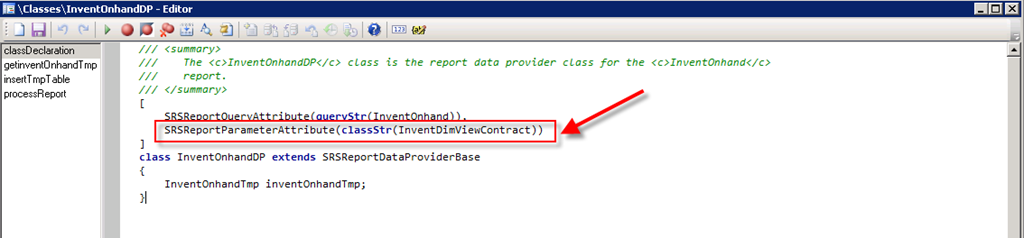
In your Data provider class use InventDimViewContract class as SRSReportParameterAttribute as shown below.
SRSReportParameterAttribute(classStr(InventDimViewContract))
image
You can find so many reports which uses this contract class, Refer to class: InventOnHandDP for more details.


How to get the count of number of pages printed on to SSRS report [AX 2012 , X++]


Recently, I came across an interesting requirement on the reports in AX 2012. If the total number of pages that gets rendered to the report is more than some X pages, the report should get saved to pdf, if not send it as an email.
Tricky part is how do I get the number of pages [page count] after the report got rendered. I tried to get the number of pages before rendering the report but was unsuccessful by using the adapter class and getNumberOfPages() method.
Finally, I found a solution. On Controller classes there is a method by name “reportViewerRefreshComplete” which can be overridden. This method gets triggered once the data has been rendered on to report viewer.
Override the “reportViewerRefreshComplete” method on any controller class and add the below code. This will help to get the count of printed physical pages on to report.
public void reportViewerRefreshComplete(SRSReportExecutionInfo _executionInfo)
{
    int page;
    super(_executionInfo);

    page = this.getReportContract().parmReportExecutionInfo().parmPrintedPhysicalPages();
    info("Total number of pages:" + int2str(page));
}
Below is the infolog with the counter of pages, after the report data got rendered on to report viewer.
image
Happy Dax6’ng.


Display SSRS report based on customer/Vendor specific language [Dynamics AX 2012]


Common requirement is to show the reports in customer’s language [example : Quotations, sales confirmations, invoices, Free text invoices, Return order acknowledgements , Agreements,  Purchase order confirmations etc].
This was easily achievable in Dynamics AX 2009 reports by using
element.design().languageID(custConfirmJour.LanguageId); // language id
Well, how do I achieve the same thing  in AX 2012 SSRS Reports? image
Its simple , we still have one liner code only in AX 2012image
We need to use the controller classes, runPrintMgmt() method or preRunModifyContract() method which changes the contract class before report is run and am leaving this to you based on the requirements.
this.parmReportContract().parmRdlContract().parmLanguageId(custConfirmJour.Language);
Below is the screen shot for reference:image
image
Happy Dax6ng,


ssrs report ax 2012

Get the underlying SSRS Report Query, reset query , add your own ranges and execute report [Dynamics AX 2012, X++]


Below is the small code snippet to get the underlying query of the SSRS report, reset query, prompt the parameters form, add our own ranges and execute the report. You can customize the job as per your requirements. Below I have used CustBaseData.Report report and added my own range on customer group.
static void SR_ResetQueries_executeReport(Args _args)
{
    #define.reportName(‘CustBaseData.Report’// report Name
    QueryBuildRange queryBuildRange;
    QueryBuildDatasource queryBuildDatasource;
    SRSReportRun srsReportRun;
    Query reportRunQuery;
    srsReportRun = new SRSReportRun(#reportName);
    srsReportRun.init();
    srsReportRun.resetQueries(); // reset the query
    reportRunQuery = srsReportRun.reportQueries().lookup(srsReportRun.currentQueryKey());
    if (srsReportRun.isInitialized() && srsReportRun.prompt()) // prompt the parameters form
    {
        queryBuildDatasource = SysQuery::findOrCreateDataSource(reportRunQuery, tablenum(CustTable));
queryBuildRange = SysQuery::findOrCreateRange(queryBuildDatasource,  fieldnum(CustTable, CustGroup));
        queryBuildRange.value(‘INT’);
        queryBuildRange.status(RangeStatus::Hidden);
        srsReportRun.saveSettings();
        srsReportRun.executeReport();
    }
}


SSRS reports [Dynamics AX 2012, X++]

How to display/show the inventory dimensions as parameters on SSRS reports [Dynamics AX 2012, X++]
Today, I am going to help you how to display the inventory dimensions [product dimensions, storage dimensions, Tracking dimensions] on SSRS reports as parameters. Not clear? Please see the Report parameters screen below.
All the inventory dimensions are available to be selected on report parameters below. You will see this view in almost all inventory reports and other module reports.
image
Well, Let me explain how to achieve this and retrieve the values in the data provider class
Its very simple, we need to make use of the contract class for this inventory dimensions view.
Standard has got a InventDimViewContract class with all the parm inventory dimensions methods and we can use these methods later in the DP classes for the selected inventory dimensions by the user on the report parameters screen.
Create an Object for InventDimViewContract in your contract class as shown below [Please note: I am using ProdPickListContract] as an example below
image
Then add a new parm method to the contract as shown below.
[DataMemberAttribute('InventDimViewContract')]
public InventDimViewContract parmInventDimViewContract(InventDimViewContract _inventDimViewContract = inventDimViewContract)
   
    inventDimViewContract = _inventDimViewContract;
    return inventDimViewContract;
}
That’s it, by adding the above discussed,we will get the inventory dimensions on the parameters screen.
Now, the question is how do we get the selected dimensions from the user. Its simple again.
In your data provider class, mainly in processReport method, get the object of the contract class and call theparmInventDimViewContract() method, this object will help you to retrieve the inventory dimensions selected by the user by using parm methods in it. [Example : ParmViewConfigId(), parmViewInventBatchId() etc]. Please refer to screen shot below.
image
You can use these selected inventory dimensions values based on your requirements. The above screen shot is just an example of retrieving the values.